
Schedule
The critical path in practice: how to find the tasks that set the finish date

In a schedule with hundreds of tasks, not every delay is equal. Some tasks can slip a week without changing the project finish at all. Others, if they slip a day, delay everything. The critical path is the sequence of those tasks, and knowing it tells the project manager where to focus.
What the critical path is
It is the longest sequence of dependent tasks between the start and the end of the project. Because it is the longest, it sets the shortest possible project duration. Any delay to a task in that sequence pushes out the finish date.
Float: each task's margin
Float is how much a task can slip without delaying anything else. Free float is the possible delay without affecting the next task; total float is the possible delay without affecting the project finish. Critical path tasks have zero total float, or negative float when the project is already behind an imposed date.
What the schedule needs for the calculation to work
- Dependencies on every task: every task needs a predecessor and a successor, except the start and the finish.
- Realistic durations: the critical path is only as good as the estimates.
- Few fixed dates: dates typed in by hand instead of dependencies break the calculation.
- Correct calendars: company and personal holidays and working hours change the dates.
How to use the critical path
- To track: in meetings, start with critical tasks that are late or about to start.
- To recover schedule: only speeding up critical tasks helps, either with more resources or by running in parallel what you can.
- To negotiate: when someone asks for a change, the critical path shows whether it affects the finish date.
How it works in OnePlanner
The OnePlanner schedule runs in the browser, with nothing to install, with WBS, dependencies between tasks, baselines and the company calendars and each person's calendar. The critical path is highlighted on the Gantt in one click. Those who prefer to plan in Microsoft Project Desktop can open the schedule in Project through the connector, edit it and publish it back.
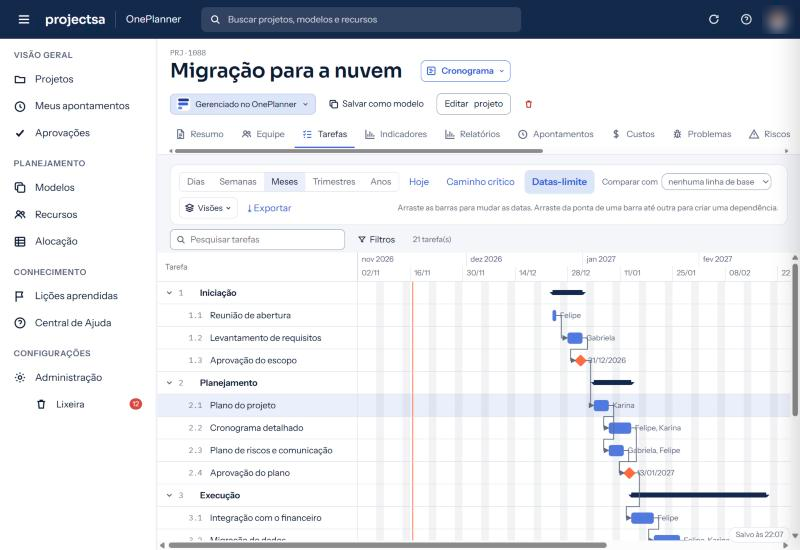
See how it works in OnePlanner: project and schedule management.
Book a demo and see the critical path of a schedule in OnePlanner.
Frequently asked questions
Can the critical path change during the project?
Yes. When a task outside it slips beyond its float, it becomes part of the critical path. That is why it should be reviewed at every update.
Can a project have more than one critical path?
Yes. When two sequences have the same duration, both are critical, and the risk of delay increases.
Do I need to install any software to see the critical path?
No. In OnePlanner, the Gantt with critical path works in the browser.